
You're on your way to a sales pitch when an idea crosses your mind that you can't afford to forget. You don't want to pull out your phone while driving, but Google Voice Typing, the voice-to-text feature built into Android, lets you jot it down without taking your eyes off the road. Here's how to turn it on, use it well, and fix it when it stops cooperating.
How to turn on voice-to-text on Android
Most Android phones already have voice typing enabled. To check, open your keyboard in any app and tap and hold the microphone icon. If it activates Google Voice Typing, you're set.
If it's off, turn it on manually:

- Open Settings.
- Tap Languages & input, or General management on Samsung devices.
- Tap Keyboard list and default, or Virtual keyboard.
- Toggle on Google Voice Typing.
You can customize the feature from the same menu, including your voice typing language and whether to block offensive words.
How to use voice-to-text on Android
Wherever your keyboard appears, the microphone icon appears with it. Tap it to start dictating.
How to send a voice text on Android
Open the conversation you want to reply to, tap the microphone icon, and speak clearly. Say your punctuation out loud, for example "period" or "comma," to keep the formatting clean. The same microphone icon works in Chrome's search bar and in most video calling apps, so you can dictate on a call the same way you would in a text message.
How to turn off Google Voice Typing on Android
If you'd rather not use the feature, turn it off using the same four steps:
- Open Settings.
- Tap Languages & input, or General management on Samsung.
- Tap Keyboard list and default, or Virtual keyboard.
- Toggle off Google Voice Typing.
Turn it back on the same way whenever you need it again.
Fixing common voice-to-text problems
Voice typing is generally reliable, but a few issues come up often enough to be worth knowing how to fix.
- Punctuation looks wrong or inconsistent. Auto-punctuation can be hit or miss, sometimes spelling out "period" instead of adding a period. Turning auto-punctuation off in keyboard settings and saying punctuation out loud yourself tends to give steadier results.
- Samsung Voice Input feels less accurate than expected. Samsung's own voice engine sometimes mishandles plurals, for example writing "CD's" instead of "CDs," and doesn't let you add custom words. Switching to Google Voice Typing under the same keyboard settings menu often clears this up, since it's a different recognition engine.
- Dictation stops mid-sentence. This is usually a connection issue rather than a bug. Confirm you have a stable Wi-Fi or mobile data connection, since Google Voice Typing needs one for most languages.
- Random words or capitalization show up wrong. This is a known limit of speech recognition, not a setting you're missing. Reviewing text before sending is still the fastest fix.
When the built-in feature is not enough
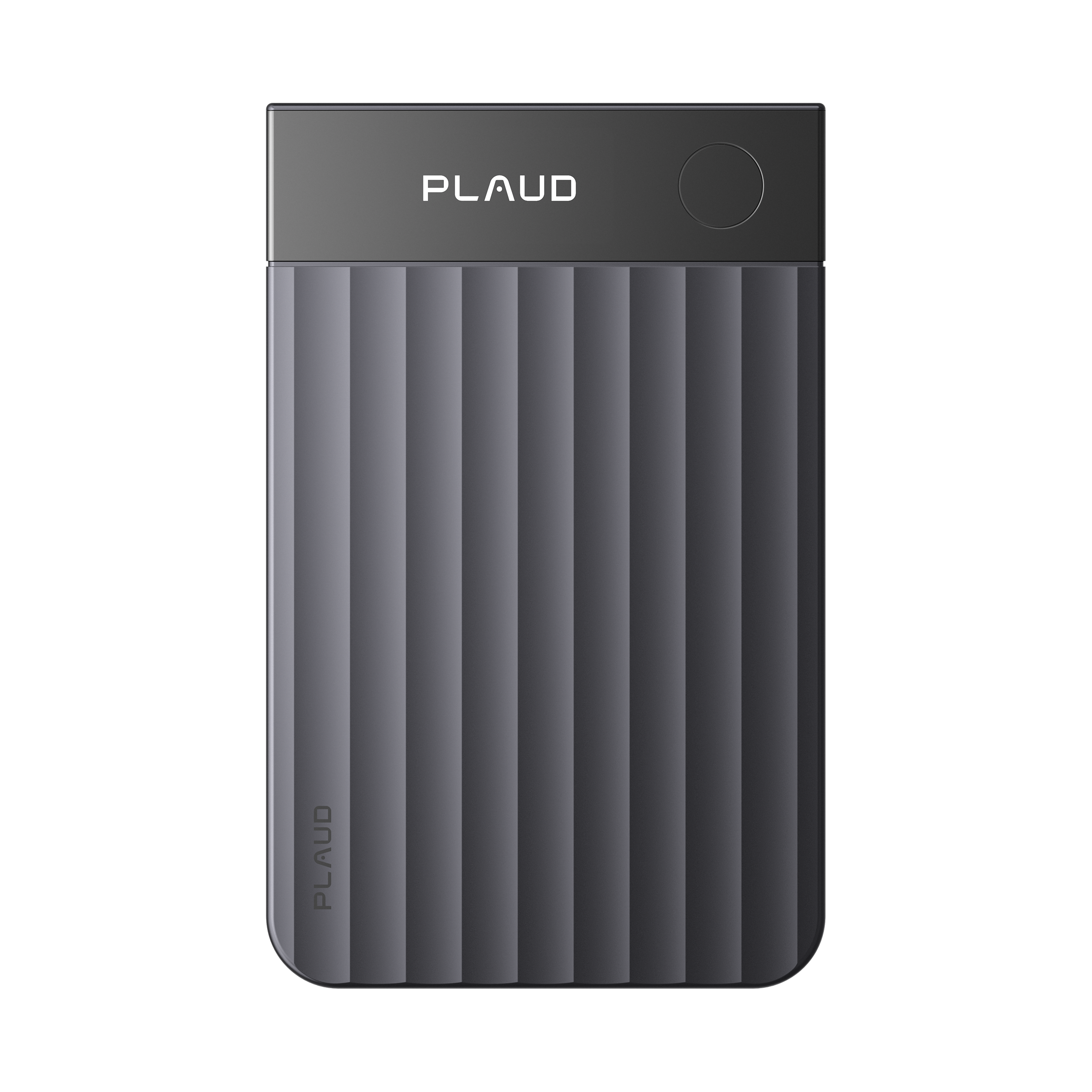
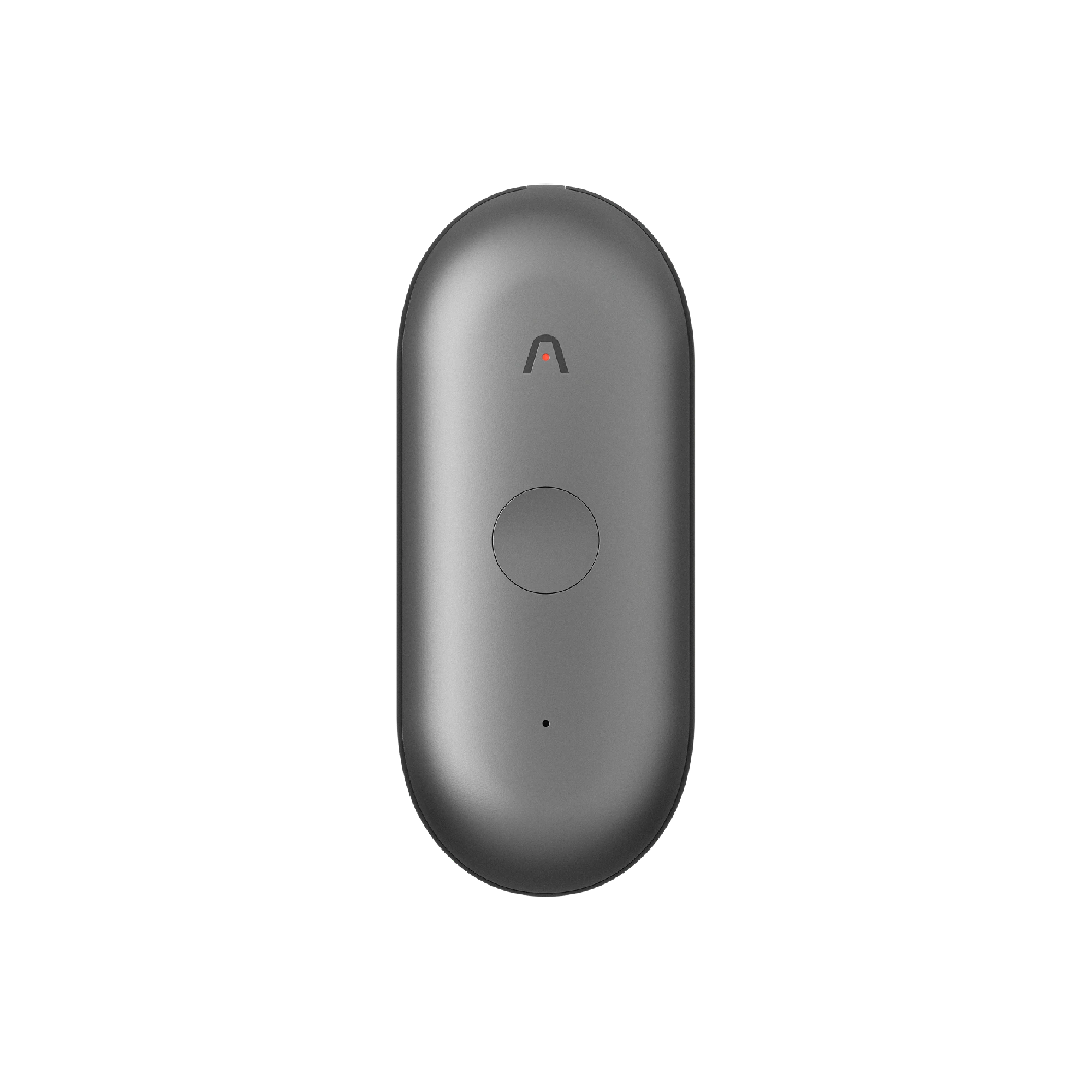
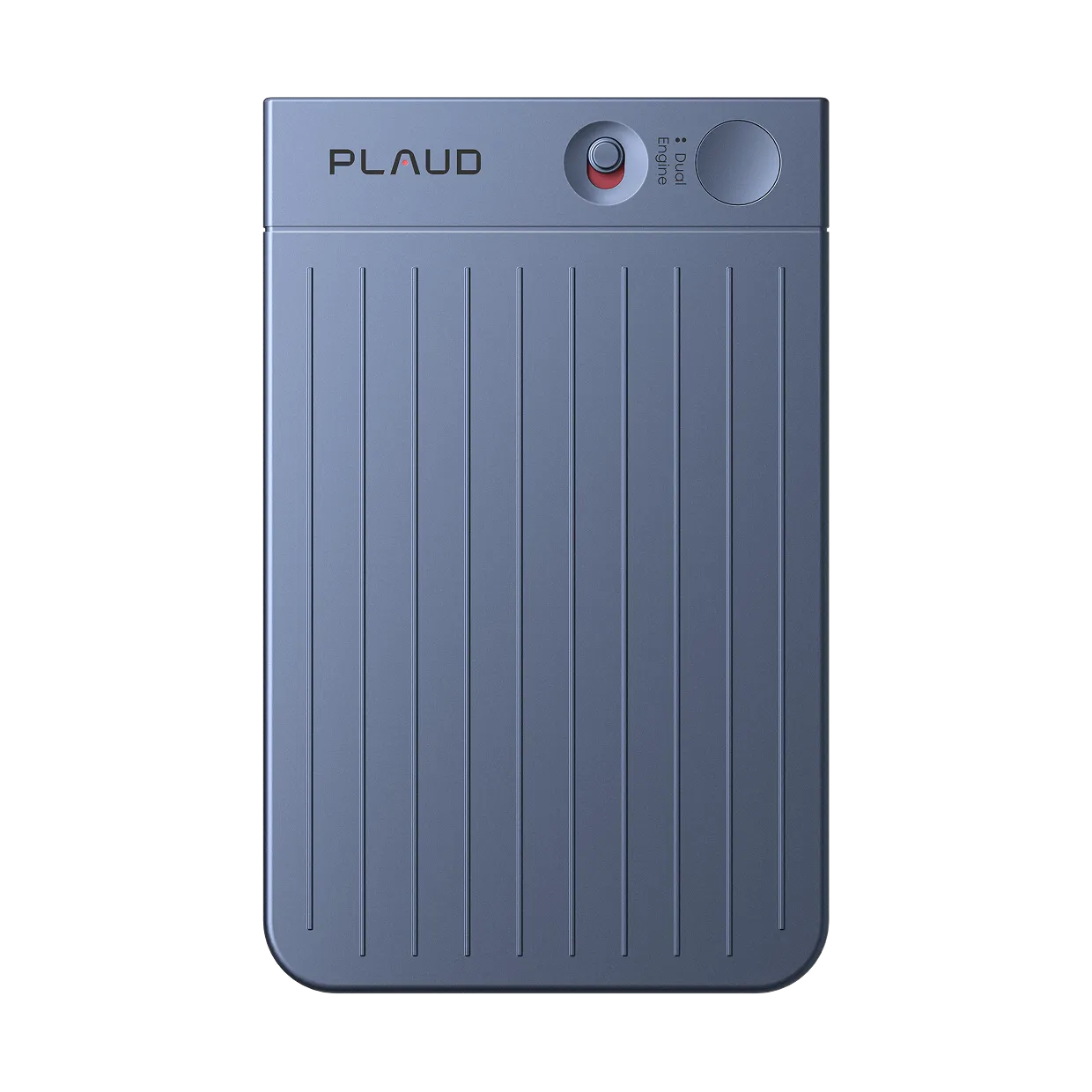
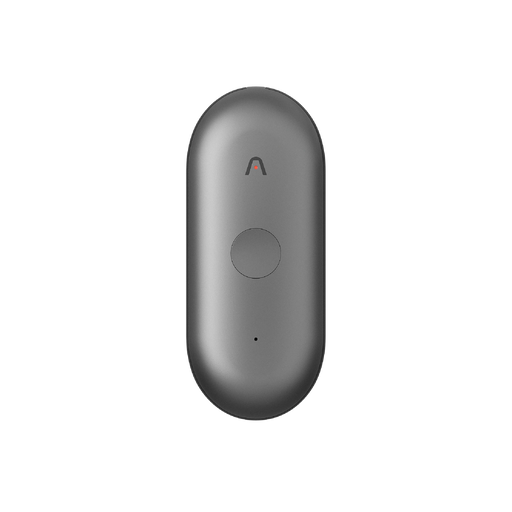
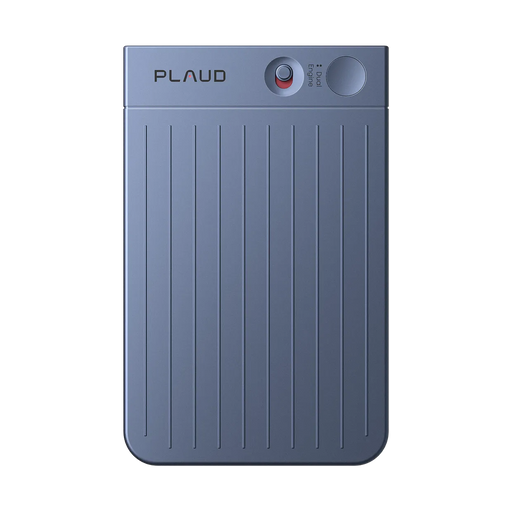
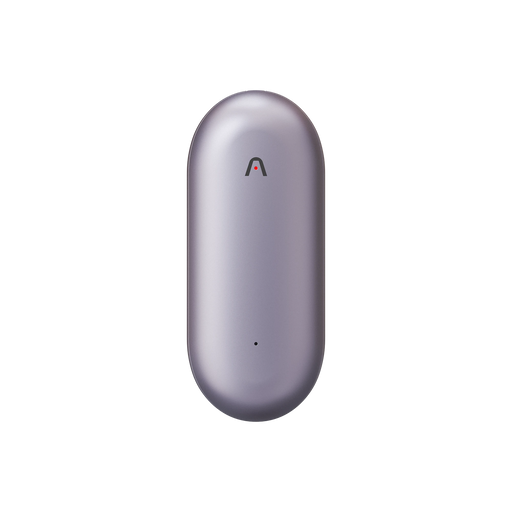
Built-in voice typing is great for texts and quick notes, but it still needs your phone in hand, awake, and the right app open before it hears a word. If an idea keeps slipping away in the time it takes to reach your phone, that gap is what Plaud NotePin S is built to close.
NotePin S is a wearable AI note taker that clips on, pins on, or wears as a lanyard or wristband. A long press starts recording without you touching your phone at all, so the idea from your drive to that sales pitch gets captured the moment it happens instead of half remembered later.

Plaud Intelligence then turns the recording into an organized, searchable transcript, and the same device handles meetings and conversations with several people just as easily.
Before you record, take a moment to let others know and get their okay. Thanks for being mindful of privacy and local laws.
For a full breakdown of when built-in voice typing is enough and when it is not, see our complete guide to voice to text on Android.
Getting the most out of your voice
Voice typing is fast, free, and already on your phone, which makes it the right tool for texts, quick notes, and search queries. Turn it on once and it's ready whenever your hands are busy or your eyes need to stay on the road.
For the moments that need more, whether that's an idea you can't lose or a conversation worth keeping, Plaud NotePin S picks up where the built-in feature leaves off.